



Building Custom Tools for Optimizely Opal AI

Opal is Optimizely's AI integrated assistant across their entire stack that helps marketing and digital teams accelerate content creation, personalization, and experimentation through the use of dedicated AI agents.
Within the Optimizely platform you can define a number of agents to work within the Optimizely ecosystem to perform a number of tasks – but what about when you want to do something that is not out of the box? In that case you can create your own “custom tool” - or application that agents can use.
Picture it this way – what if you wanted the Opal AI chatbot to be able to talk to a third-party system you have, interact with its API, and return that data to you in conversation and leverage it in Optimizely?
Creating a custom tool makes that possible. In this post I will walk you through the basics of how to get a custom tool created and usable in the Optimizely Platform.
Requirements
First, you need to understand the architecture of a custom tool and what it is and how it works before you can create one.
You have two routes to take where the custom tool can live. You can either self-host it on Azure, Amazon, Google or similar hosting services or you can upload it to the Optimizely Cloud Platform. This post will focus on self-hosting it.
Two, you can choose from one of three SDKs to utilize to create your custom tool:
- Performance needs – Match the language to the workload.
- C# – Choose for high-performance, low-latency backend services.
- Python – Choose for data-heavy processing, machine learning, and analytics.
- JavaScript – Choose for I/O-bound work like concurrent web or API requests.
- Tool type – Align the SDK with what the tool primarily does.
- Backend automation or workflows – Use C# or Python.
- Data processing or machine learning – Use Python (for example, Pandas, NumPy, Scikit-learn, TensorFlow, PyTorch).
- Web or browser-based integrations – Use JavaScript.
- External integrations – Pick what fits the systems you connect to.
- C# – Best for the Microsoft ecosystem (for instance, Azure or SQL Server).
- Python – Strong community libraries for cloud and data services.
- JavaScript – Excellent support for web APIs.
Which SDK you select will be what is most relevant and comfortable for you or your team to develop and use. Ultimately, the application must be discoverable over a public URL at /discovery. All other paths on the web application can be protected by authentication but that path must be public so Optimizely can read and understand what your tool does – which is how Agent(s) know when to use it, and how.
In our case, we want to integrate with a third-party API and have a simple web app architecture – we selected the JavaScript SDK.
Defining Your Tool
Since we’re using the JavaScript SDK we can use Node.js and Express.js to serve as our application stack and server. Node.js is a JavaScript runtime environment that allows developers to execute JavaScript code outside of a web browser, and it is highly efficient for building scalable network applications.
Express.js is a minimalist and flexible web application framework for Node.js. It provides a robust set of features for building web and mobile applications, as well as APIs. Together they make a great combo for facilitating our self-hosted Opal tool requirements.
Using Express.js allows us to quick spin up a new web application and define what our custom tool can do in a series of callable functions for Opal. When Opal scans the /discovery endpoint of your tool, it reads all the capabilities the tool provides, its endpoints, the parameters for the endpoint, and descriptions and context of what it does and when to use an endpoint:

While this URL must be public so Opal can read it, your endpoints can require authentication to protect them.
Publishing to the Optimizely Registry
Adding your custom tool to Optimizely is really straightforward. Once your custom tool is running and available on the internet, you can add your tool registry in the Optimizely Opal admin interface and give it a name, a discovery URL and a bearer token:
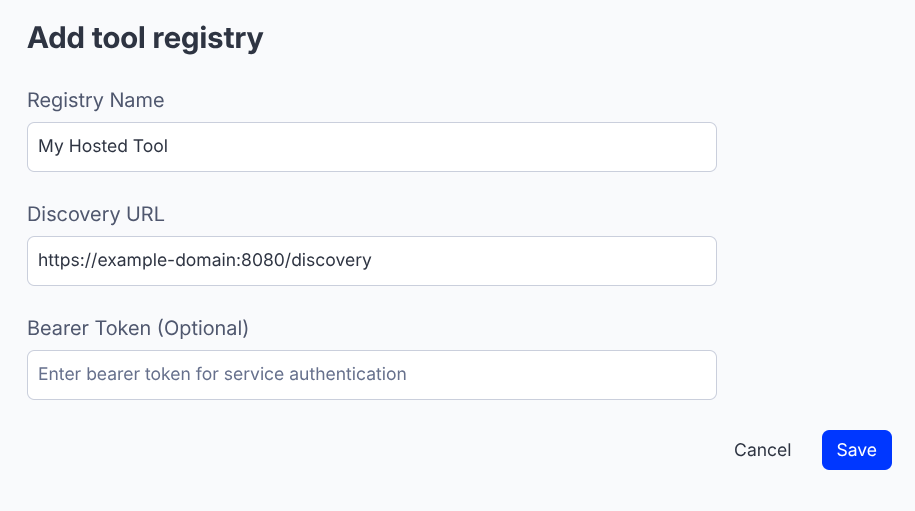
Once added, it is now ready to be used.
Telling Agent(s) About the Tool
With the tool now registered and active, we can create or modify agents with that tool. In the ‘Inputs’ section of an Agent, we can then grant it access to use our tool and the instructions of when and how to use it:

Wrapping Up
Adding custom tools to Optimizely’s Opal is straightforward, and the SDKs provide a robust way to solve different use cases that you can run into for Agents regardless of your main language stack. Several tools can be chained together in a single Agent or used independently in ‘specialized agents’ in Optimizely serving different needs. We will be exploring more options and implementations of Agents and tools for Optimizely and Opal in the coming months.